Studio tour
The Sandbox studio panel by panel: the entry screen, the six steps (Map, Cast, Build, Rules, Test, Publish), the asset editor, quick add, autosave and deep links.
The studio is a full game editor in a browser tab. It follows one path in six steps — Map → Cast → Build → Rules → Test → Publish — and this page tours it panel by panel. If what you want is the logic of that path, read The six steps instead.
Screen layout
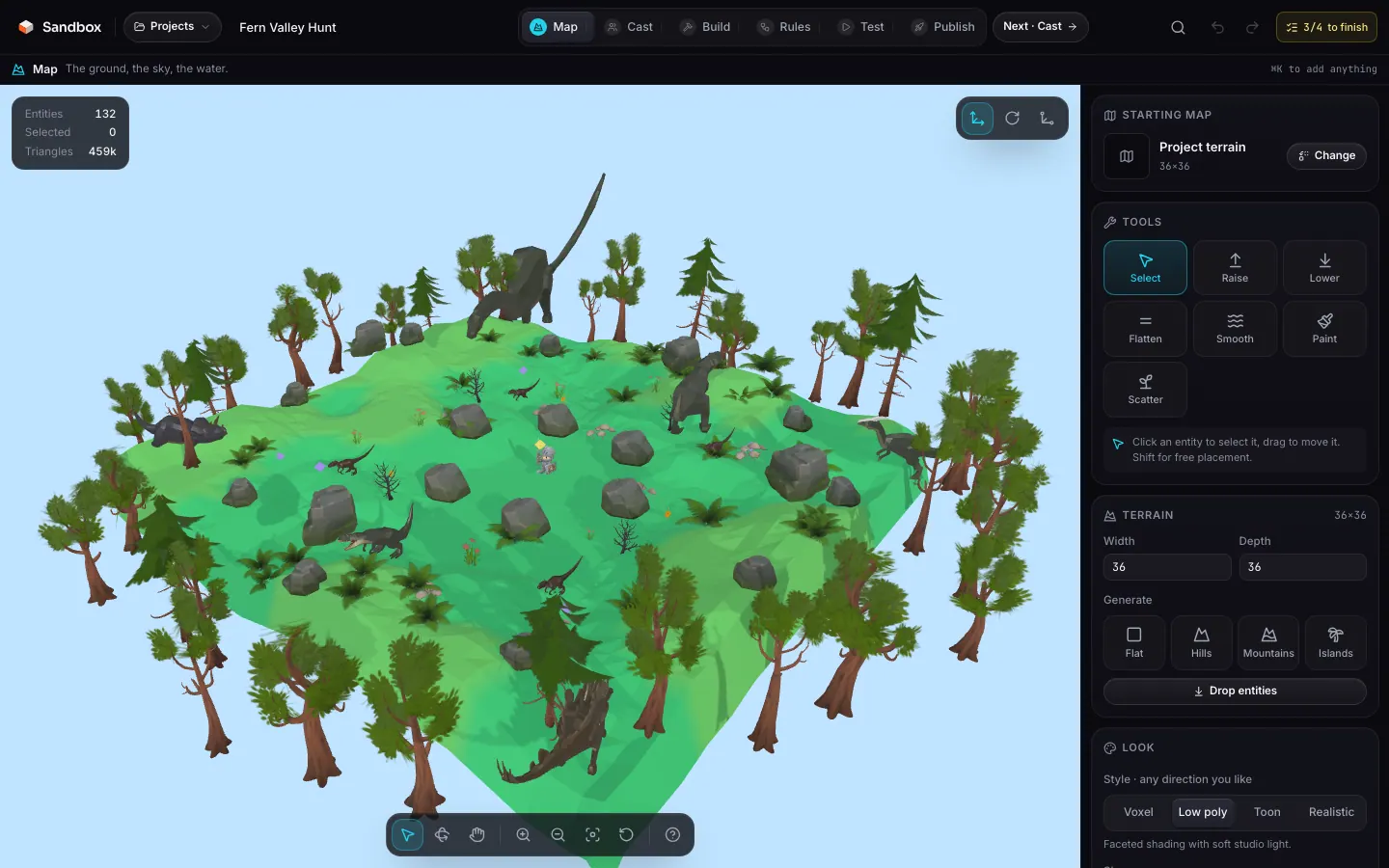
The top bar
It never changes, whatever the step. From left to right:
| Element | What it does |
|---|---|
| Sandbox | Back to the public site. |
| Projects | A menu: all projects (back to the entry screen), Save, Export .sandbox.json. |
| The title | The game’s name, editable in place. It is the same field as on the publish listing. |
| The save state | “saved” with a time, or “unsaved” for the few seconds after a change. |
| The six steps | The stepper, with the current step lit and a tick on the ones already opened, followed by the “Next · <step>” button. |
| The magnifier | Opens quick add, same as ⌘K. |
| Undo / Redo | 60 steps of history, shared by every step. |
| x/4 to finish | What is missing before you can publish; a click opens the list and jumps to the step that fixes each line. |
| The mode | The current game mode, read-only here: it is changed on the Rules step. |
The step line
Just below it, one line says where you are and what the step is for (“Map — the ground, the sky, the water”), with the ⌘K reminder on the right. It disappears during a test, where the screen belongs to the game.
The body of the screen
| Step | Layout |
|---|---|
| Map | 3D view + map panel on the right. |
| Cast | 3D view + cast panel on the right. |
| Build | Outliner on the left, 3D view in the middle, build panel on the right. |
| Rules | One full-width page with five sections. |
| Test | The game, filling the frame. |
| Publish | Two columns: listing and cover on the left, what’s missing and publishing on the right. |
On a small screen
The entry screen
With no project open, the studio offers three ways to start, as three cards: Start from a game (the nine complete games, playable at once), Start from a map (eight starting maps as real top-down thumbnails, then a mode), and Empty project. Below: your projects saved in this browser, each with its mode, its date and a “published” label when relevant, and the Import button to reopen a .sandbox.json.
Map
The right-hand panel, top to bottom:
| Section | Contents |
|---|---|
| Starting map | The thumbnail and name of the project’s map, its size, and “Change” which re-applies another one: the ground and the sky are replaced, the cast and the props stay and settle back on the ground. A project that did not come from a map shows “Project terrain”. |
| Tools | Select, Raise, Lower, Flatten, Smooth, Paint, Scatter, with a brush radius of 1 to 8 and, for Paint, the terrain palette (which you can recolour). |
| Terrain | Width and depth, the four generators (flat, hills, mountains, islands) and “Drop entities”. |
| Look | Render style, sky, hour, fog, sun, ambient light, smooth terrain, sky dome, and the saveable moods. |
| Camera & atmosphere | In-game camera, weather, day / night cycle, HDRI sky and the water plane (level, colour, waves, opacity). |
| Post-processing | Bloom, vignette, SSAO, grade and the music URL. Post-processing applies in game, not in the editing view. |
Cast
Cast gathers everything that acts in the game. At the top, two buttons: Pick a character opens a full-screen browser of the library’s animated characters and creatures (search field, All / Characters / Creatures / Animated filters, the animation count on each thumbnail); Model my own creates a fresh voxel character and opens the asset editor. Either way the model lands on the map at once and placing stays armed: the next click puts down another.
Below come the four groups, in the order they matter. Every row is one model in one role: thumbnail, name, how many copies, how many animations, four buttons (select, place on the map, edit asset, remove every copy — the player is replaced rather than removed, so it has no remove) and the role’s settings, which apply to every copy in the row at once.
| Group | What it holds | Inline settings |
|---|---|---|
| Player | Exactly one: the player’s model and where the game begins. | Team, tag. |
| Enemies | The ones that patrol, chase or guard. | Behaviour, speed, hit points, team, tag. |
| NPCs | The ones the player talks to with E. | What it says, tag. |
| Spawners | The ones that bring more of them in over time. | Rate in seconds, max alive, tag. |
At the very bottom of the panel, the inspector details the entity selected in the view, copy by copy, for the settings that concern only one of them (position, scale, path, events).
Build
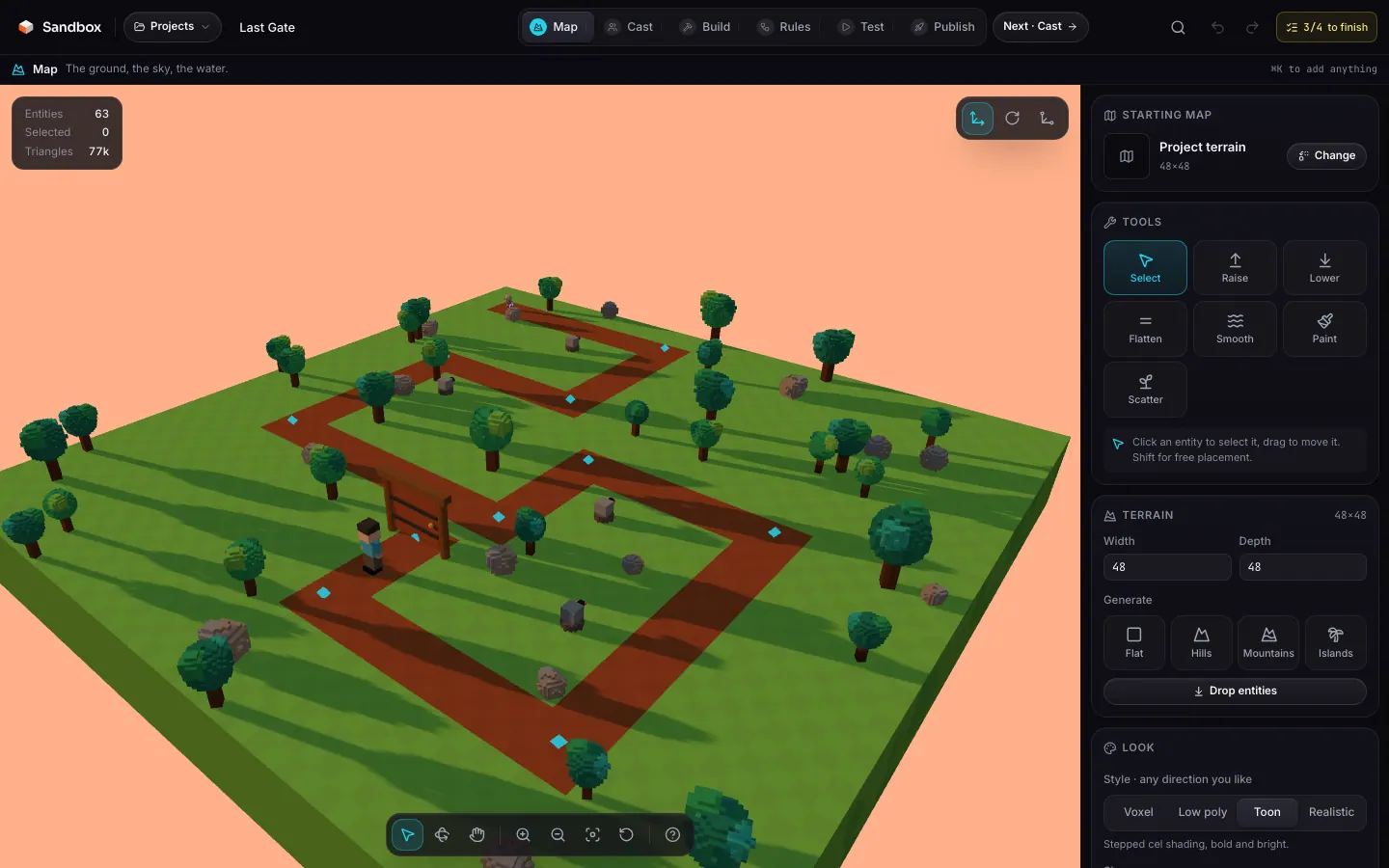
Three columns, and a right-hand panel in five sections.
Outliner
The left column lists entities grouped by role, with a field to filter the scene and the number of selected entities. Each row lets you set a tag or hide / show the entity.
Viewport
In the middle, the editable scene — the same view as on the Map and Cast steps: click to select, Shift to add to the selection, move, rotate and scale gizmos, copy-paste and duplicate. Post-processing does not apply in the editor, only in game.
Right panel
| Section | Contents |
|---|---|
| Asset editor | + Voxel (a fresh grid), + Build (an assembly of primitives), Import (.glb .gltf .obj .fbx .stl .vox or an asset .json), then Edit asset and Animate for the current asset. |
| Project assets | The document’s assets (up to 96) with a colour dot per kind — voxel, primitives, imported model — and a row of starters: hero, kart, blob, coin, tree, rock, crate, spikes, boost, gate, flag, sign, turret, cloud. |
| Library | The full catalogue: search, categories, styles. One click adds the model to the project and arms placing. |
| Tools | Select, Place, Erase, Scatter. With Place, the grid of roles available in this mode and the asset list (or “none” for an invisible marker). |
| Inspector and stats | The selected entity’s parameters (role, scale, height, behaviour, tag, team, path, spawner, turret, events) and six scene counters. |
The asset editor
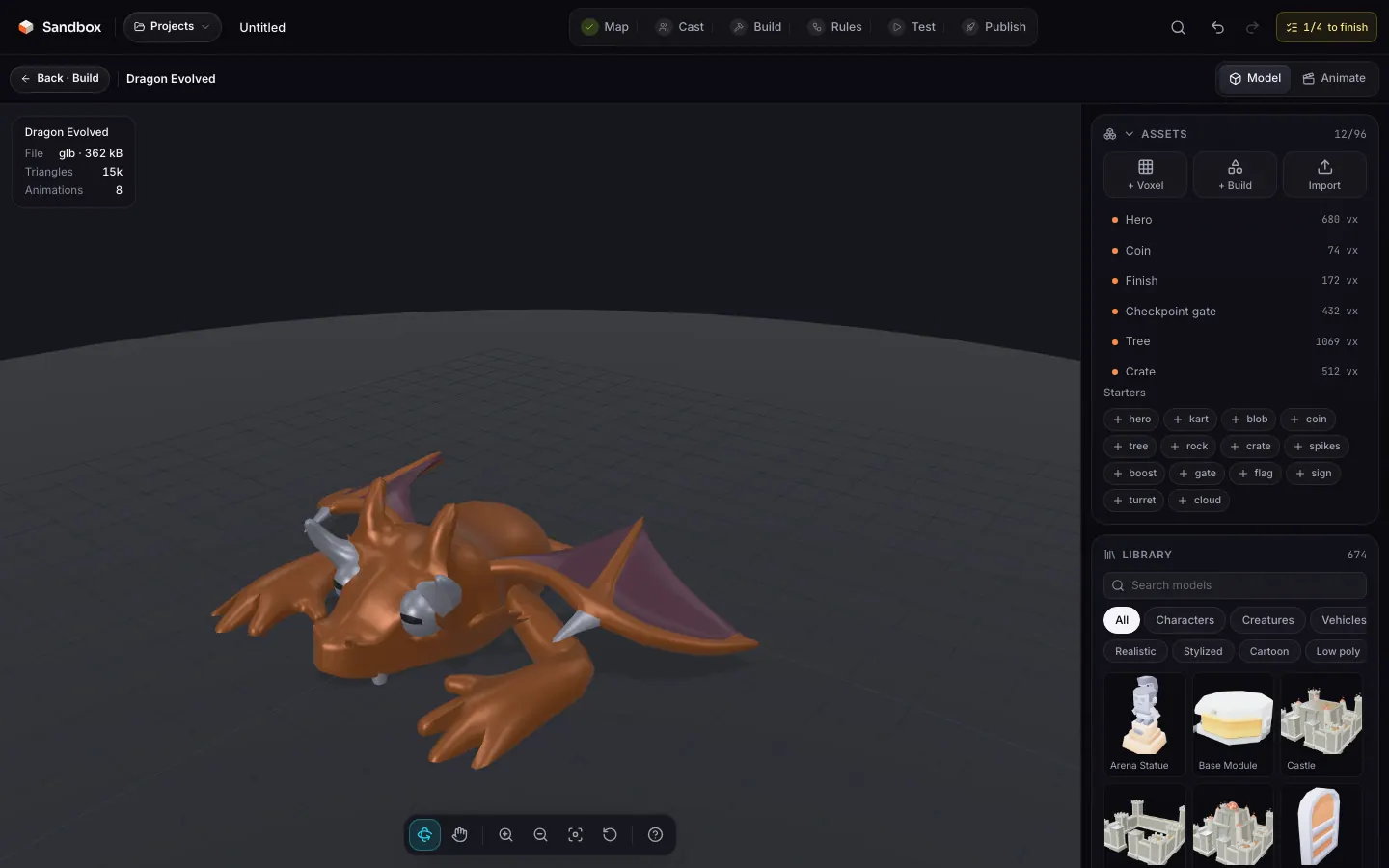
Model and Animate are not steps: they are the two surfaces of one editor, opened from Cast or Build. Its bar carries a Back button that names the step you came from (“Back · Build”), the asset’s name, and the Model | Animate switch. Esc closes the editor and returns you exactly where you were.
Model
On the left, the asset’s view; on the right, the panel. It holds the asset list with its three creation buttons, the library, the AI generation panel, the asset’s properties (rename, export as JSON, duplicate, delete), then the editor for its kind: voxel tools and parts for a grid, pieces, gizmos and materials for a primitive assembly, height and animations for an imported model.
Animate
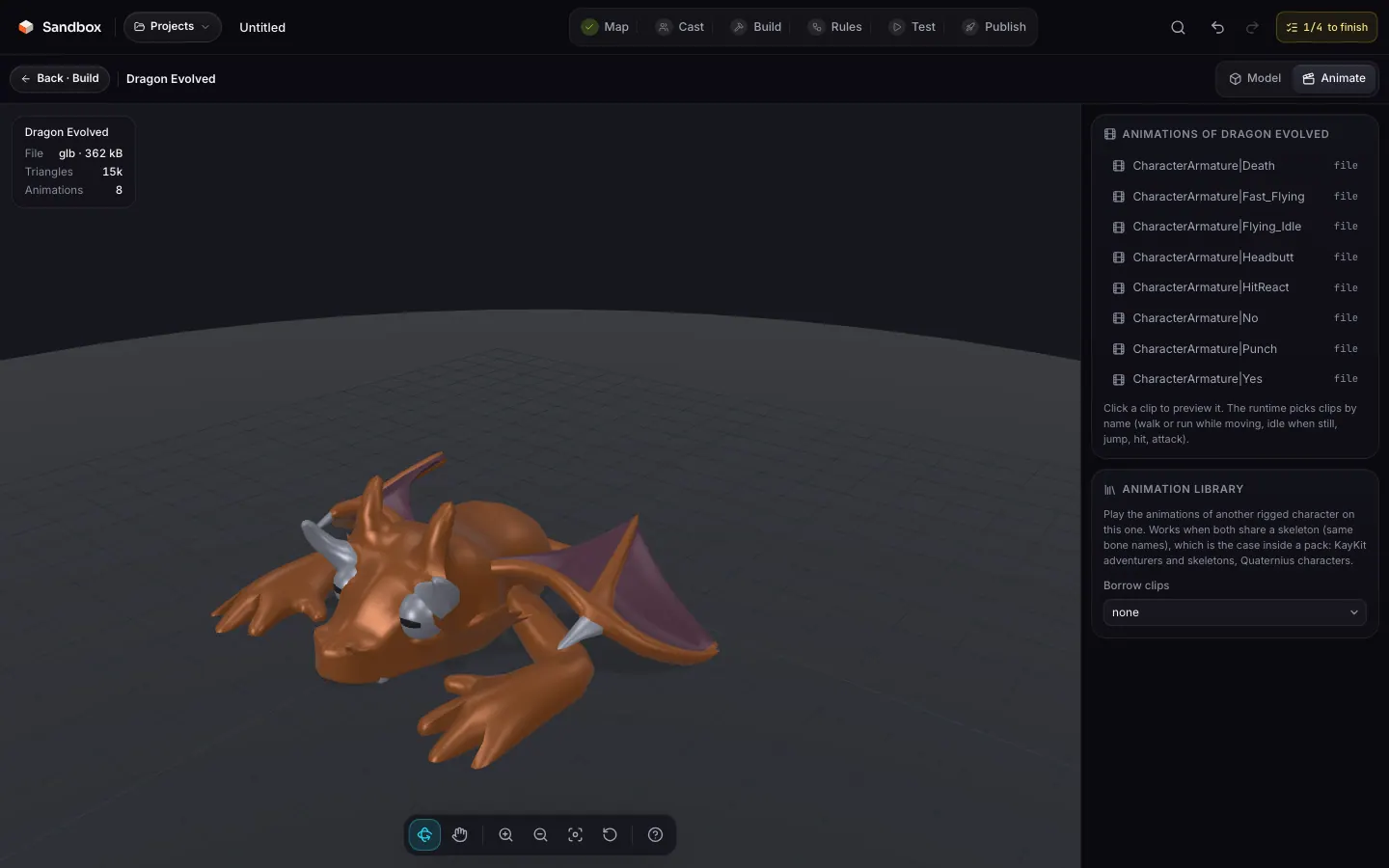
For an imported model, the surface lists the animations inside the file (one click previews them) and lets you borrow the clips of another rigged library character that shares the same skeleton. For a voxel or primitive asset, you create keyframe clips (position, rotation, scale per part), with a duration, a loop and presets that read the part names.
Rules
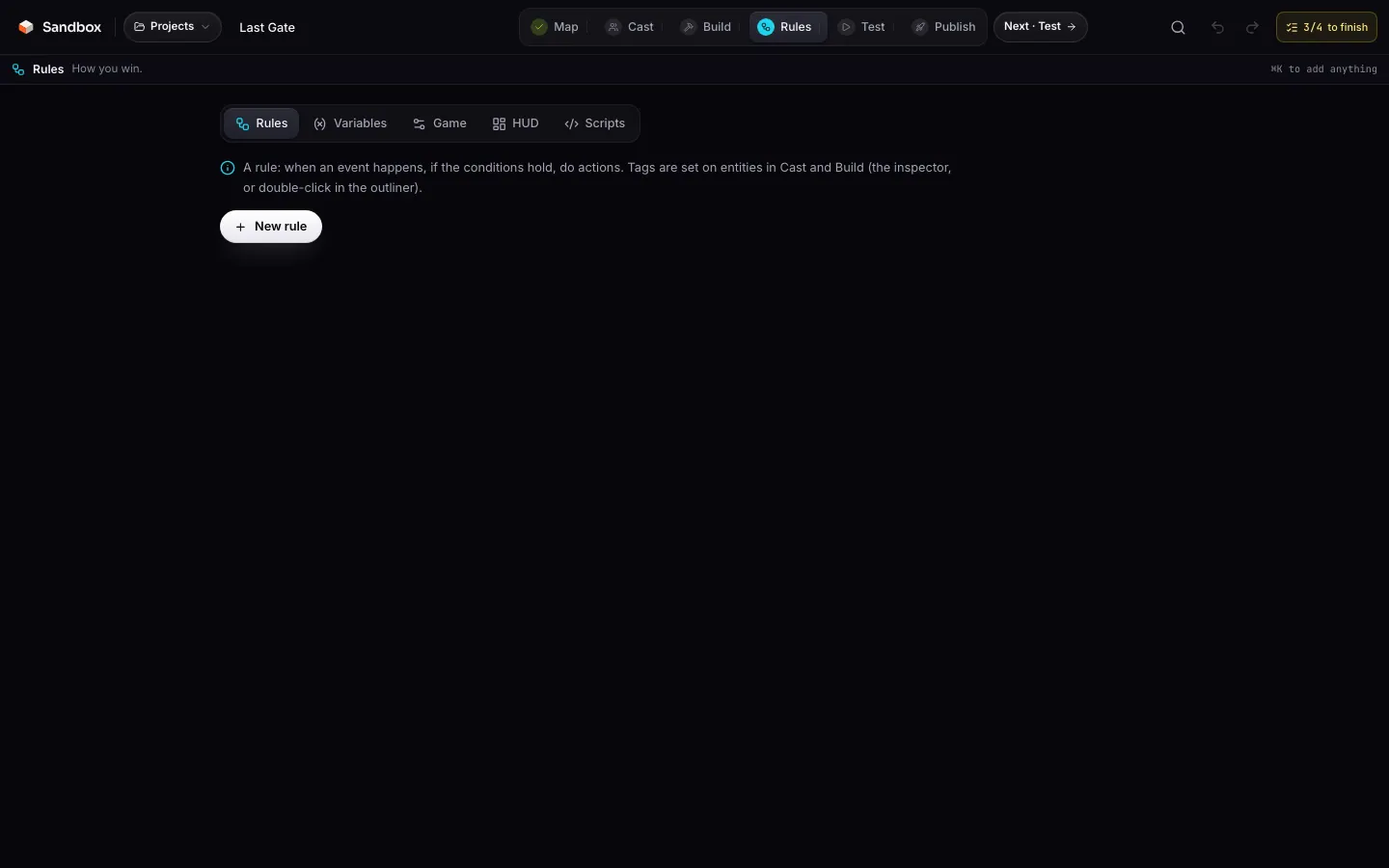
The Rules step gathers the game logic on one page with five sections:
| Section | Contents |
|---|---|
| Rules | When (event) / If (conditions on variables) / Then (actions) rules, each one enabled, repeatable or “once”. |
| Variables | The game’s variables: name, type, initial value, scope (global, player, object). |
| Game | The game mode and its settings (laps, bots, lives, coins to finish, waves, lanes, time limit, speed, gravity, jump), the round duration, the win and lose conditions. |
| HUD | What the interface shows: score, timer, health, lives, coins, variables, start screen. |
| Scripts | The JavaScript script editor and its console. |
rules field.Test
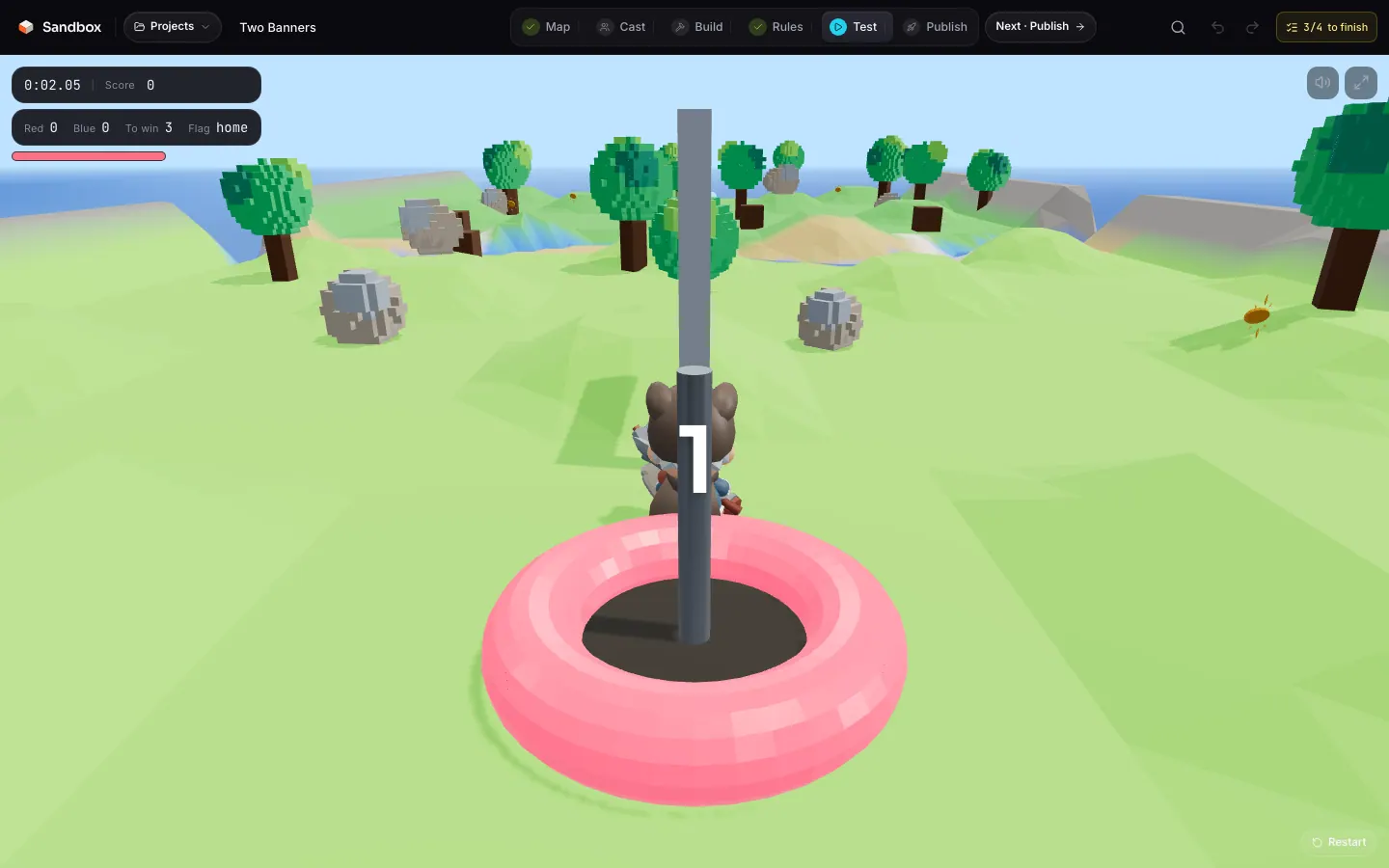
Test runs the game in the public runtime, on a copy of the document: playing never changes your project. Restart starts a fresh round, and the button at the top right of the frame goes fullscreen (Esc leaves it). The runtime is the same as on the game page: what you test is what players get — with one difference: no wallet is asked for here, while a published game needs one to start.
Publish
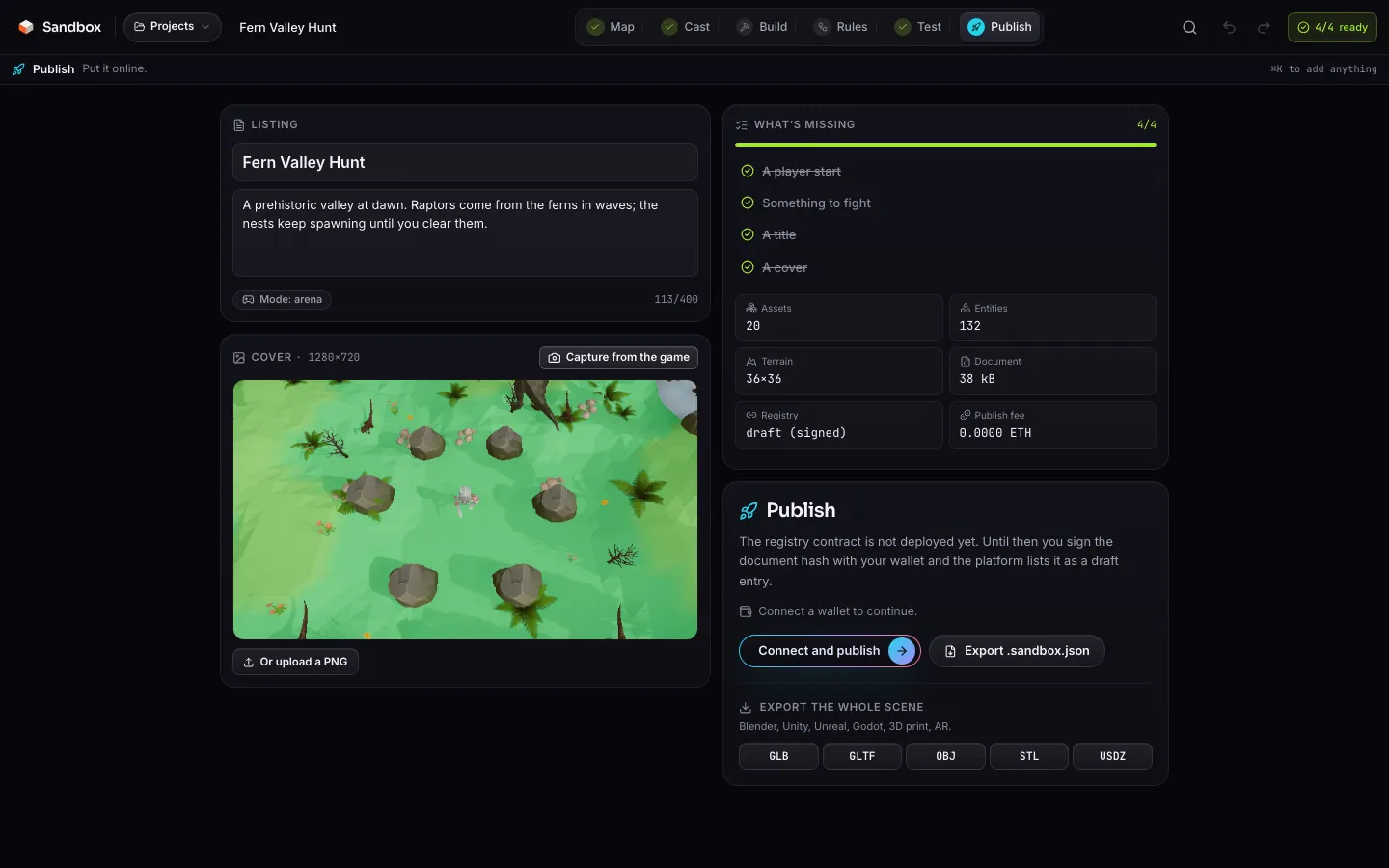
On the left, the listing (64-character title, 400-character description) and the 1280×720 cover, captured from the game or uploaded as a PNG. On the right, what’s missing — the same four lines as the chip in the top bar, each one clickable to reach the step that fixes it — six numbers about the document (assets, entities, terrain size, weight, registry, publish fee), the Publish button, the .sandbox.json export and the export of the whole scene as GLB, glTF, OBJ, STL or USDZ.
Quick add
⌘K (or CtrlK, or the magnifier in the top bar) opens quick add anywhere in the studio. It searches the whole library and the starter assets at once; the arrow keys move the highlight, Enter adds the asset to the project and arms the map, Esc closes. If you were on Rules, Test or Publish, the studio takes you back to Build so the next click has ground to land on.
Projects, saving and history
| Action | How |
|---|---|
| Save | Automatic, in the browser’s localStorage, about 1.2 s after the last change, and once already when the project is created; CtrlS to force it. |
| Undo | CtrlZ, up to 60 steps. |
| Redo | CtrlMajZ |
| File backup | Projects menu, or the Publish step: Export .sandbox.json. |
| Restore | Entry screen, Import; the document is migrated to the current format. |
| Delete | A project card’s bin button deletes it from this browser, after a confirmation. |
Deep links
| URL | Effect |
|---|---|
/studio?template=race | Opens a mode’s complete game (race, platformer, arena, runner, explore, ctf, tower), or hunt and cove for the two showcases. |
/studio?map=island&mode=explore | Opens a starting map in the mode you ask for, with no gameplay. Without a valid mode, it is explore. |
/studio?asset=<id> | New Explore project with that library asset, opened in the asset editor. |
/studio?remix=<id> | Loads a published game into a new project, titled “remix”. |
/studio?open=<id> | Reopens a project already saved in this browser. |
/studio?prompt=… | New project with the description handed to the generator, in the asset editor. |